
Setting up staff for Stripe payouts
Let your crew get paid to their own bank through Stripe.
Paying staff through Crewty moves money from your Stripe balance to each staff member's own account. Staff never take card payments for you, they only receive payouts, so they are never the card merchant.
Before you start
Make sure your own Stripe account is connected first (see Connecting your Stripe account). You also need Stripe Connect turned on in your Stripe Dashboard, which is walked through with screenshots below. You can turn this on any time; charging clients works right away either way.
Turning on Stripe Connect, with screenshots
Charging clients already works without this. You only need Stripe Connect to pay your staff by bank transfer.
-
1
Open Connect in your Stripe dashboard
In the left menu open More, then Connect. If you cannot see it, search for Connect at the top.
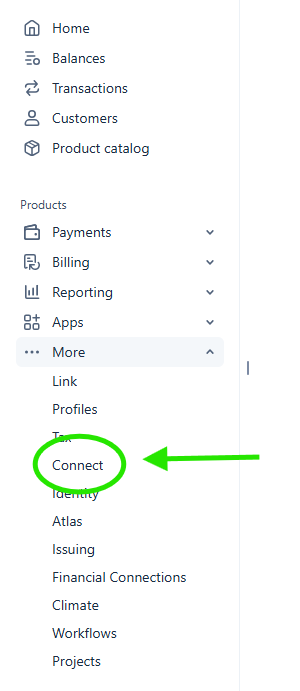
More, then Connect. 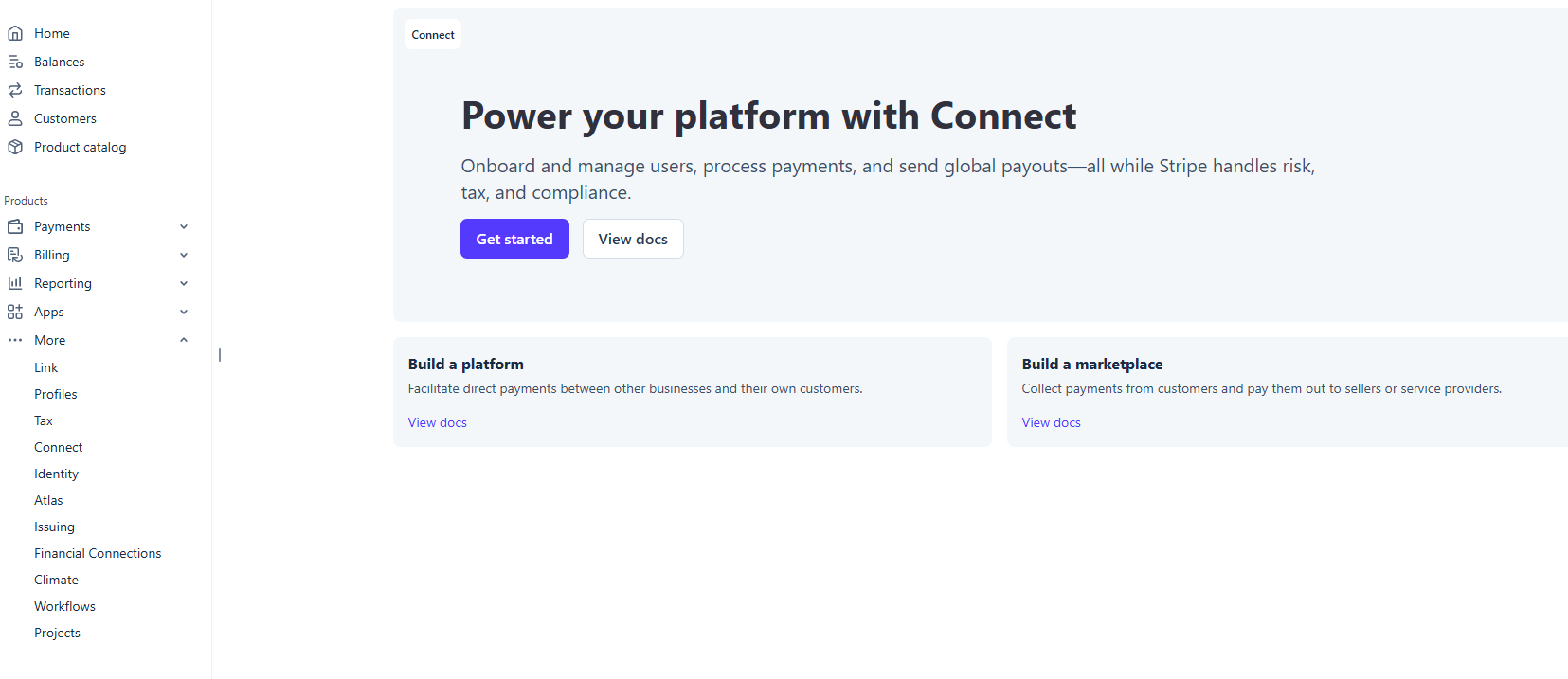
This is the page you want. -
2
Press Get started and choose Platform
Stripe asks what you are building. Choose Platform. That is the option that lets you pay other people.
Then work through the short checklist. You will be asked to verify your identity with a photo ID and a selfie.
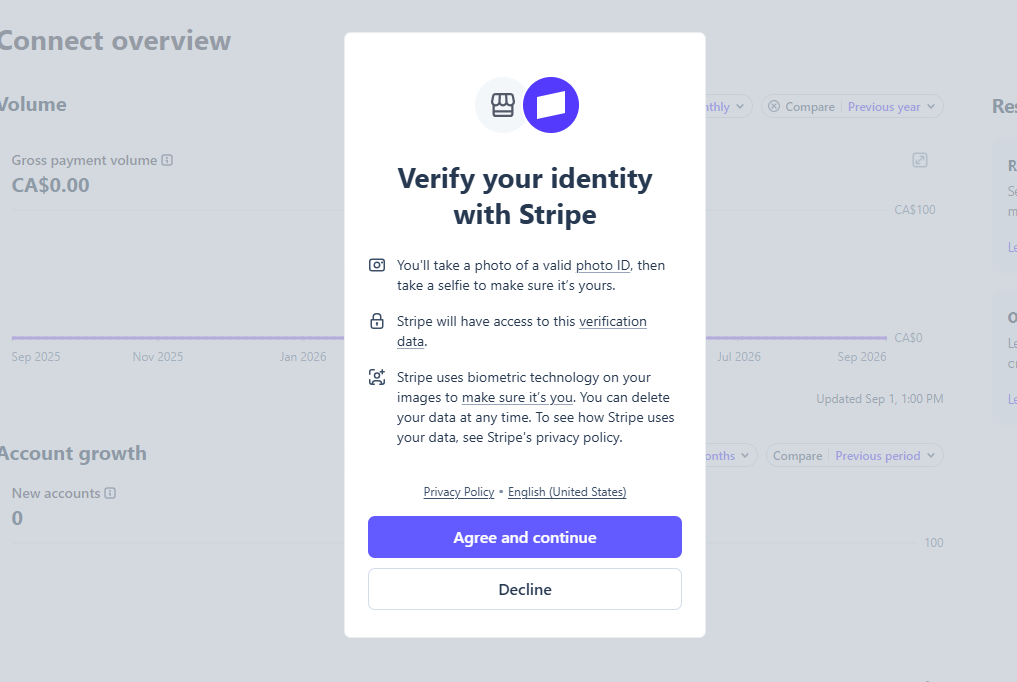
Identity check: required. 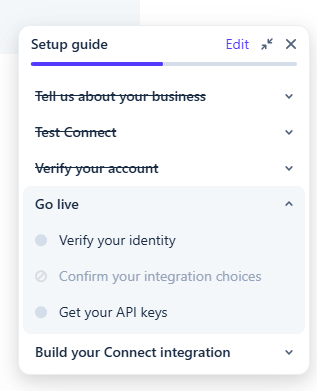
Only identity and platform choice are required. You do not need every item on that checklist. Only choosing Platform and verifying your identity are required. The API keys step is already done from connecting your Stripe account.
-
3
Refresh and check it went live
Come back to Crewty, open Settings, then Payments, and refresh. Paying staff should now show as Active.
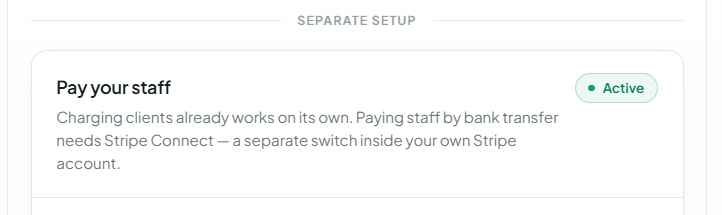
Active means you can pay staff.
Connect is on. From here each staff member opens their own Crewty settings, adds their basic details and bank account, and can be paid. That takes them about 5 to 10 minutes.
How a staff member gets set up
- Invite the staff member from the Staff section (see Inviting staff and admins).
- They accept the invite and open the staff portal.
- From the portal they connect their payout details, which Stripe collects directly (bank or debit card, depending on their country).
- Once their payout account is active, they show as ready to be paid.
Setting each person's pay
Open a staff member on the Staff page and choose how they are paid. There are two standing pay models:
- Hourly is an hourly rate multiplied by the time that counts under your pay model, either actual clocked time or booked time (see Setting up your company). If two people share a job, hourly pay is divided by their split.
- Percentage is a percentage of the job total. Each person earns their own percentage of the whole job, so a percentage is not divided by the split.
Paying a set amount for one job
When a job needs a one-off figure, you do not have to change their standing rate. Assign them to the booking, then tap their amount in the payment preview and enter what you want to pay for that job. That amount replaces their normal rate for that booking only, and it is what the staff member sees on their portal before they start, so there are no surprises at payout.
A custom amount cannot exceed the job total, and where several people are on the same job their combined custom amounts cannot exceed it either.
Changing an amount after the job
Once a job is complete it becomes a pending payment. While it is still unpaid you can open it from the payments area and use Adjust amount to change what you pay. Once a payment has been sent it can no longer be adjusted.
Paying them
When work is done, run a payout from the payments area. The transfer moves from your Stripe balance to the staff member's connected account, as long as your balance and Stripe settings allow it (see When client payments arrive for timing).
If a staff member has not finished connecting their payout account, you will not be able to pay them through Stripe yet. Ask them to complete the payout step in their portal.